How to Print Whatnot Labels Automatically
Hot-Label prints small live-sale labels automatically while you run your Whatnot show. Instead of pausing to write tags, you just stick a label on each item as it sells.
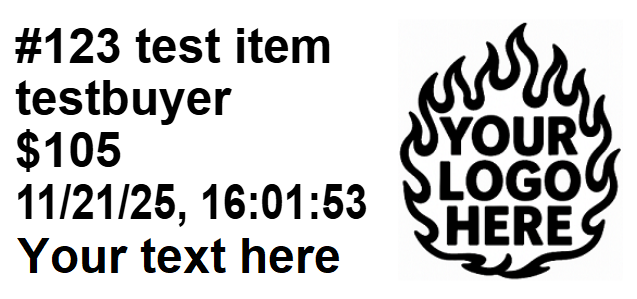
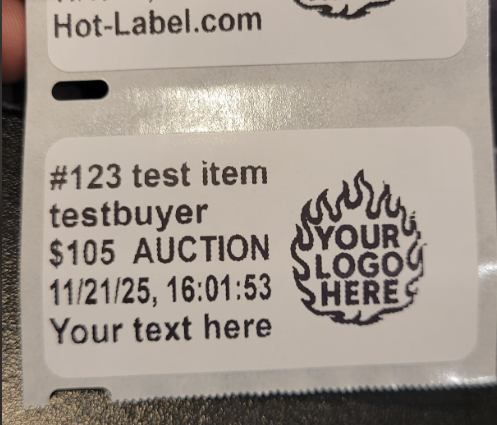
Manual vs. automatic label printing
Manually printing or handwriting labels for every order quickly becomes a bottleneck during live shows. Automatic labels keep you in the flow so you can focus on hosting, calling bids, and packing items — not wrestling with your printer.
Step 1: Sign up on Hot-Label
Start by creating your account on the Hot-Label website. We'll walk you through a short onboarding flow so we know which platform you're selling on and how you plan to use labels during your shows.
Step 2: Install the extension and QZ Tray from your dashboard
After you sign up, your dashboard will give you everything you need to install Hot-Label:
- The Hot-Label Chrome extension that connects your browser and Whatnot to Hot-Label.
- The QZ Tray download that lets us talk directly to your printer from your computer.
Your dashboard already helps you through this process, but these links are here in case you need them again later.
Step 3: Open the Hot-Label extension and configure printer settings
Once the extension and QZ Tray are installed, open the Hot-Label extension in your browser (usually from the puzzle icon in Chrome) and click the Settings button.
In the settings screen you can:
- Select which printer you want Hot-Label to use.
- Choose the label size you use for your live-sale labels (often around 2×1).
- Adjust any preferences for how labels print during your show.
If you're unsure whether your printer is supported, see our System Requirements page for more details about supported systems and printers.
Step 4: Run a test print before every show
Before you go live, use the Test Print button to make sure everything is working the way you expect. This sends a small sample label to your chosen printer.
We strongly recommend running a quick test print before each show so you can confirm:
- The label comes out of the correct printer.
- The size and orientation look right for your live-sale labels.
- QZ Tray is running and connected.
Step 5: Enable auto print and start your Whatnot show
When you're happy with your test print, turn on Auto Print. From there, Hot-Label will automatically print a small label every time an eligible sale completes during your show.
You can choose in settings whether auto print should stop automatically when your show ends, or continue running until you turn it off. Either way, the goal is simple: as each item sells, you grab the label and stick it on the item on the spot.
Ready to stop printing labels the hard way?
Hot-Label is built for livestream sellers who want every sale to get a label without extra clicks. Once you're set up, it's as simple as test print, enable auto print, and go live.